
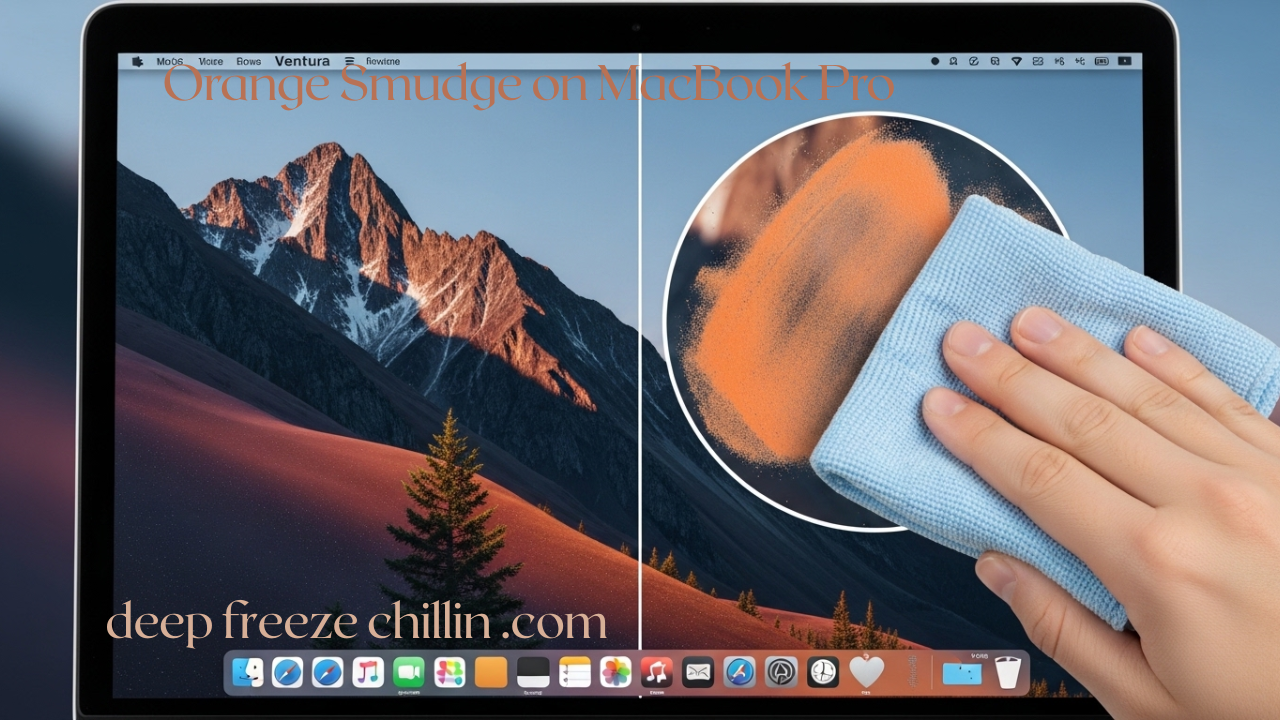
There’s a particular moment of dread that every MacBook Pro owner knows well. You open your laptop, ready to tackle the day’s work, and there it is—an unsettling orange or yellowish blotch staring back at you from the edge of your pristine Retina display. If you’ve experienced this, you’re far from alone. The infamous “orange smudge” has been a recurring topic in Apple forums and communities for years, particularly among users of 2016-2019 MacBook Pro models .
The good news? Understanding why these smudges appear is the first step toward preventing them. In most cases, this discoloration stems from two primary culprits: physical pressure on the display and excessive heat buildup . When you close your laptop with objects trapped between the keyboard and screen, or when your device repeatedly runs at high temperatures, the delicate LCD layers can compress or degrade, creating those telltale orange hues .
While newer M-series MacBooks have improved thermal designs that make this issue less common, many users still rely on older Intel-based models that remain vulnerable . Whether you’re protecting a brand-new M4 MacBook Pro or extending the life of a trusted 2017 workhorse, these prevention strategies will help keep your display spotless.
Understanding the Enemy: What Causes Orange Smudges?
Before diving into prevention techniques, it’s helpful to understand exactly what you’re trying to prevent. Orange smudges typically appear as hazy, fingerprint-like blotches near the edges of the screen or in corners. Some users describe them as yellowish spots that seem to shift or change when pressure is applied to the display .
The Pressure Problem
One of the most common causes is physical stress on the LCD panel. This can happen when:
-
Closing the lid with objects on the keyboard: Earbuds, charging cables, pen caps, or even crumbs can create pressure points
-
Overstuffing your backpack: When your bag is packed too tightly, the screen bears the brunt of the squeeze
-
Carrying your laptop improperly: Gripping it by the screen edge rather than the base
As one Reddit user described, their orange spots appeared “out of nowhere” after a beach trip—only to realize that sand in their bag combined with a tight fit had created the perfect conditions for pressure marks . The thin bezels on modern MacBook Pros make the edges particularly vulnerable to this type of damage .
The Heat Factor
Heat is equally destructive. When your MacBook runs hot—during video editing marathons, gaming sessions, or even just regular use in warm environments—the display panel can warp. A closed lid traps this warmth like a sauna, effectively “baking” discoloration into the screen .
Interestingly, some users report that orange smudges seem to migrate. They might appear in one corner after the laptop has been stored vertically in a bag, then slowly fade when the device rests flat on a desk . This phenomenon suggests that heat and gravity can cause the LCD’s internal components to shift temporarily.
Your Prevention Playbook: Daily Habits for a Clean Screen
Now that you understand the threats, let’s build a defense strategy. These preventative measures require minimal effort but pay significant dividends in screen longevity.
Smart Storage and Transport
Invest in a Quality Sleeve or Case
A padded sleeve is non-negotiable for anyone who carries their MacBook between locations. Hard-shell cases add another layer of protection, absorbing impacts that would otherwise transfer directly to the display . Look for sleeves with reinforced corners and soft interior linings.
Clear the Keyboard Before Closing
Before you snap that lid shut, take two seconds to glance at your keyboard. Remove any earbuds, charging cables, sticky notes, or debris. This simple habit eliminates the risk of pressure points that can create permanent orange smudges .
Mind Your Bag Packing
When placing your laptop in a backpack or messenger bag, position it against the stiffest part of the bag—usually the back panel facing your spine. Avoid stacking heavy textbooks or other rigid items on top of the computer. If you must carry multiple items, place the heaviest ones closest to your back and let the laptop rest against them, rather than under them.
Thermal Management Strategies
Keep It on Hard Surfaces
Your MacBook needs to breathe. Soft surfaces like beds, couches, and blankets block ventilation ports, trapping heat and forcing internal temperatures to skyrocket . Always use your laptop on a hard, flat surface like a desk or table.
Elevate for Intensive Tasks
For video editing, gaming, or any processor-heavy work, consider using a laptop stand or cooling pad. These accessories promote airflow underneath the device and can significantly reduce operating temperatures .
Avoid Direct Sunlight and Hot Cars
Never leave your MacBook in a parked car on a warm day, and don’t work with direct sunlight beating down on the device. Extreme external temperatures compound internal heat generation, pushing your display closer to discoloration .
Consider Fan Control Software (Especially for Intel Models)
Apple’s default fan curves prioritize quiet operation, which sometimes allows temperatures to climb higher than ideal before the fans spin up. For older Intel-based MacBooks, apps like Macs Fan Control (free) or TG Pro (paid) let you take manual control . You can set custom fan curves that ramp up cooling at lower temperatures—for instance, starting fans at 30% when the CPU hits 60°C and maxing out at 75°C . This proactive cooling can prevent the heat buildup that leads to discoloration.
The Art of Safe Cleaning: Removing Smudges Without Causing Damage
Sometimes what looks like an orange smudge is actually just a buildup of oils, dirt, or cleaning product residue. Proper cleaning techniques can both prevent discoloration and remove existing marks that aren’t permanent hardware damage.
Apple’s Official Recommendations
Apple provides clear guidelines for cleaning your MacBook Pro safely :
-
Shut down and unplug your MacBook before cleaning
-
Use only a soft, lint-free cloth—microfiber is ideal
-
For standard cleaning: Dampen the cloth with water only (not wet, just damp) and gently wipe the screen
-
For stubborn smudges: You may use a 70% isopropyl alcohol solution on the cloth, but avoid getting moisture in any openings
What to Avoid at All Costs
The list of cleaning products that can damage your MacBook screen is extensive :
-
Window cleaners (like Windex)
-
Household cleaners (multi-surface sprays)
-
Aerosol sprays of any kind
-
Solvents (acetone, paint thinner)
-
Ammonia-based products
-
Abrasives (scouring pads, paper towels)
-
Products containing hydrogen peroxide
-
Bleach or any harsh chemicals
Never spray any liquid directly onto the screen—it can drip inside the display and cause internal damage .
Step-by-Step Cleaning Guide
For best results, follow this routine :
-
Power down completely and disconnect all cables
-
Use a dry microfiber cloth first to remove loose dust and particles (this prevents scratching during wet cleaning)
-
If smudges remain, slightly dampen a fresh microfiber cloth with distilled water (tap water can leave mineral deposits)
-
Wipe gently in circular motions, applying minimal pressure
-
For oil-based smudges (fingerprints), a cloth lightly moistened with 70% isopropyl alcohol is effective—just ensure it’s not dripping wet
-
Allow the screen to air-dry completely before closing the lid or powering on
Recommended Cleaning Products
If you prefer purpose-built solutions :
-
Apple Polishing Cloth ($19): Designed specifically for Apple displays, including nano-texture glass
-
ScreenDr Electronics Screen Cleaning System (~$15): Includes spray bottle and microfiber cloth, streak-free formula safe for electronics
Both options pair well with the safe techniques described above.
Software Checks: Ruling Out Digital Causes
Before assuming your orange smudge is hardware damage, run these quick software checks to eliminate digital causes .
The Screenshot Test
Take a screenshot (Command + Shift + 3). If the orange smudge does not appear in the screenshot, the issue is almost certainly hardware-related—the screen itself is displaying incorrectly, but the image data is clean .
Disable Night Shift
Night Shift warms your display colors for evening use. Sometimes this setting, combined with other factors, can make normal screen variations appear more pronounced . Toggle it off in Control Center or System Settings > Displays to see if the “smudge” disappears.
Check for Software Updates
Apple regularly releases macOS updates that fix display-related bugs . Navigate to System Settings > General > Software Update to ensure you’re running the latest version.
Reset NVRAM/PRAM
Corrupted display settings can sometimes cause color issues . To reset:
-
Shut down your MacBook
-
Turn it on and immediately press and hold Option + Command + P + R for about 20 seconds
-
Release the keys and allow the normal startup to continue
The External Display Test
Connect your MacBook to an external monitor or TV. If the external display shows normal colors without any orange discoloration, your MacBook’s internal screen is the source of the problem .
When to Seek Professional Help
Despite your best prevention efforts, sometimes hardware issues arise. Here’s when to stop DIY troubleshooting and consult the experts .
Warranty and AppleCare Coverage
If your MacBook Pro is still under warranty or covered by AppleCare+, schedule a visit to the Apple Store or an Authorized Service Provider. For known issues affecting certain models, Apple may offer repairs at no cost even outside the standard warranty period. Many users with 2016-2018 models successfully received free screen replacements when orange smudge issues were reported .
Warning Signs That Require Immediate Attention
Don’t delay professional consultation if you notice :
-
The smudge expanding in size or becoming more pronounced over time
-
Flickering or color distortion accompanying the smudge
-
Physical cracks or visible damage to the screen
-
Signs of liquid damage (even minor spills can cause delayed reactions)
-
A swollen battery—if your trackpad bulges or the bottom case lifts, this is an urgent safety issue
What to Expect from Repairs
If screen replacement becomes necessary, costs typically range from $500-800 at Apple, depending on your model . DIY replacement using iFixit kits can cost $300-600 but carries significant risk and voids any remaining warranty .
Long-Term Maintenance Habits
Preventing orange smudges isn’t a one-time effort—it’s about building sustainable habits.
Weekly Cleaning Routine
Set aside five minutes each week for basic maintenance :
-
Wipe down the exterior with a soft cloth
-
Check ports for dust buildup (use compressed air if needed)
-
Clean the screen following the safe methods outlined above
-
Inspect for any developing issues
Monthly Health Checks
Once a month, run through these checks :
-
Battery Health: System Settings > Battery > Battery Health
-
Storage Cleanup: Remove unnecessary files and apps
-
Software Updates: Verify your macOS is current
-
Vent Inspection: Ensure air vents are dust-free (compressed air works well)
Environmental Awareness
Be mindful of where and how you use your MacBook :
-
Avoid extreme temperatures (below 50°F or above 95°F)
-
Maintain humidity at reasonable levels
-
Keep food and drinks at a safe distance
-
Use on appropriate surfaces only
Real Stories from the MacBook Community
The MacBook Pro orange smudge phenomenon has generated countless discussions across forums. Here are some insights from actual users :
| User Experience | Key Takeaway | Outcome |
|---|---|---|
| Orange spots after beach trip | Sand in bag + tight squeeze = pressure marks | Faded after rest; fan control prevented recurrence |
| Yellow glow in corner | Backpack-related pressure damage | Required screen replacement ($400) |
| Smudge appears after vertical storage | Gravity affecting LCD layers | Disappears when laptop rests flat |
| Heat-related discoloration during rendering | Overheating during intensive tasks | Macs Fan Control resolved issue |
These real-world experiences reinforce the importance of both pressure prevention and thermal management.
Conclusion: Clear Screen, Clear Conscience
The orange smudge on MacBook Pro screens doesn’t have to be an inevitable part of laptop ownership. By understanding the dual threats of physical pressure and excessive heat, you can take proactive steps to protect your investment.
The essentials are simple but powerful:
-
Store smartly with padded protection and clear keyboards
-
Manage heat through proper ventilation and fan control
-
Clean correctly with appropriate tools and techniques
-
Stay vigilant with regular maintenance and early intervention
Whether you’re safeguarding a brand-new M4 MacBook Pro or nursing an older Intel model through its golden years, these strategies will help maintain that crystal-clear Retina display you paid for.
Frequently Asked Questions
What exactly causes orange smudges on MacBook Pro screens?
Orange smudges typically result from physical pressure on the LCD panel or heat-related degradation of display components. Pressure marks occur when objects press against the screen when the lid is closed, while heat damage comes from prolonged high-temperature operation .
Can I fix an orange smudge myself?
If the smudge is purely cosmetic and caused by pressure, sometimes gently massaging the area or letting the laptop rest can help it fade. However, if it’s permanent discoloration, screen replacement may be necessary .
Are newer MacBook Pros less likely to develop orange smudges?
Yes. M-series MacBooks have improved thermal design, making heat-related discoloration much rarer. However, pressure damage remains possible on any laptop if objects are trapped between the screen and keyboard .
Does Apple cover orange smudge repair under warranty?
For models with known display issues (particularly 2016-2018), Apple has sometimes provided free replacements even outside warranty. If your device is still under standard warranty or AppleCare+, schedule a Genius Bar appointment for evaluation .
How often should I clean my MacBook screen?
A light cleaning every 1-2 weeks is sufficient for most users. More frequent cleaning may be needed if you eat near your laptop or have particularly oily skin .